Digital I/Os
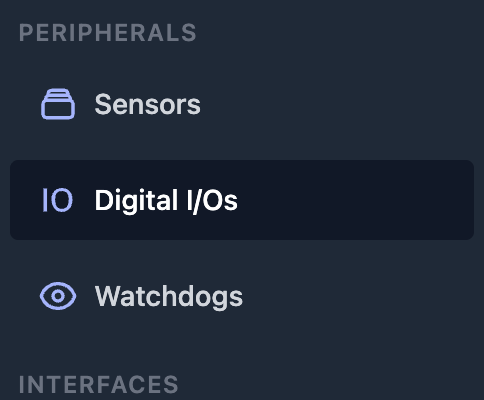
To configure the digital I/Os of the device, please navigate to Digital I/Os from the main menu in the Peripherals section.
The Digital I/Os main page presents an overview table, where each row represents one Input or Output.
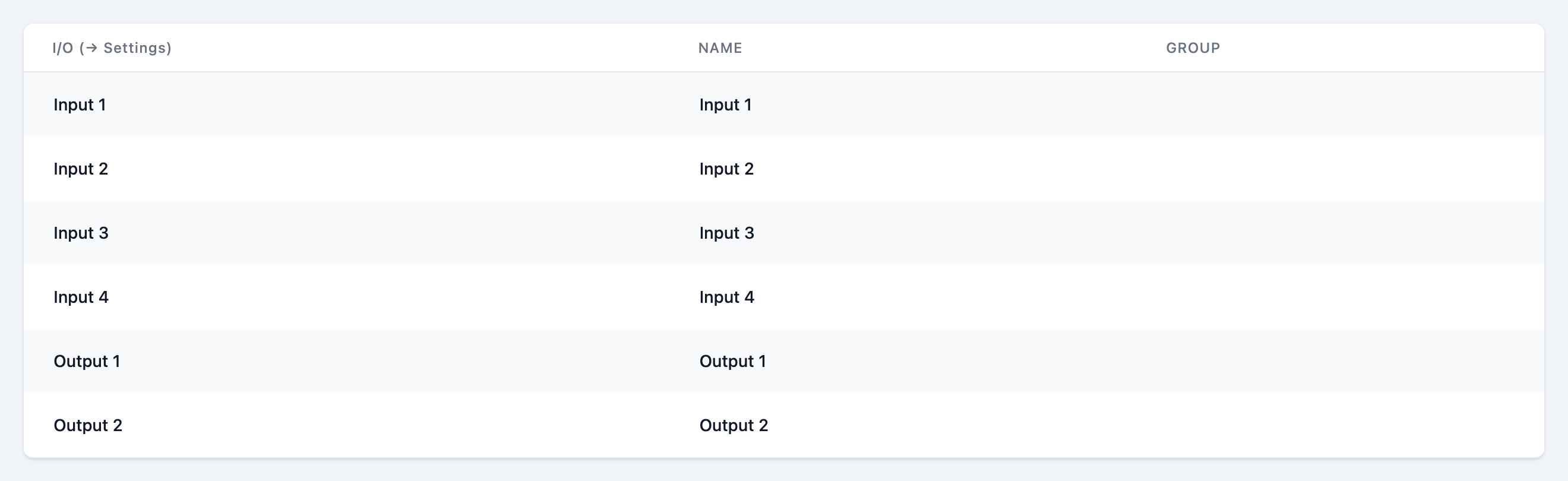
To navigate to the configuration page for a specific input or output, click on the corresponding row.
Configuring an input
In the Digital I/Os overview table, click on the row of the input you would like to configure.
This will open the detail configuration page, as shown below.
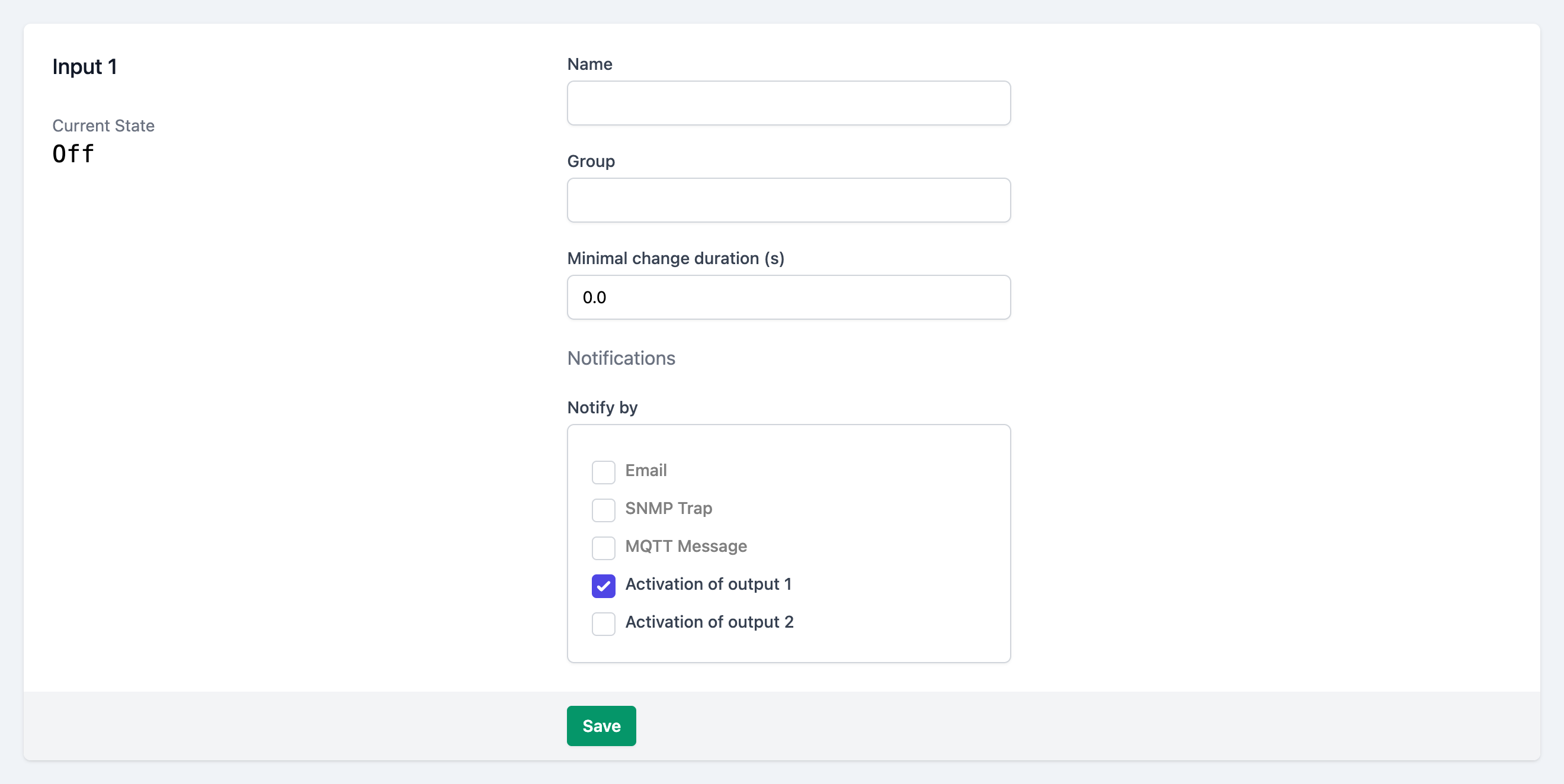
Name
Choose a descriptive name for the input.
Group
Optionally enter a string as the name for the group, this peripheral should belong to.
If you use the same group name for other peripherals (sensors, digital I/Os, watchdogs), those can be shown and filtered by their group on the dashboard.
Minimal change duration
This specifies the timespan in seconds, after which a state change is considered to have occured.
Notifications
When the input state changes, the device can emit notifications to make the user aware. This respects the Minimal change duration setting above.
Check one or multiple of the checkboxes, which stand for the channel(s), over which the notifications get sent. Multiple channels can be activated simultaneously.
The device sends an email.
The exact text of the emails can be customized by supplying or editing a template on the email configuration page.
Email Configuration page- SNMP Trap
The device sends a SNMP trap.
SNMP Configuration page- MQTT Message
The device sends a MQTT message.
MQTT Configuration page- Activation of output 1
- The device activates digital output 1.
- Activation of output 2
- The device activates digital output 2.
Please note, that for
- Email (Configuration page)
- SNMP Trap (Configuration page)
- MQTT Message (Configuration page)
the respective interfaces have to be configured and enabled through their configuration pages.
Also refer to the Notifications docs page.
Box2Box actions
Similar to notifications, when the Box2Box Feature is enabled, the device can control an digital output on another device, when an events occurs with the peripheral.
The corresponding checkboxes are only visible, after the Box2Box feature has been enabled.
// TODO SCREEN
Check one or multiple of the checkboxes, which stand for the output(s), of the controlled device. Multiple outputs can be controlled simultaneously.
Save the configuration
After filling in the form, click on at the bottom of the page, to persist the configuration.
Configuring an output
In the Digital I/Os overview table, click on the row of the output you would like to configure.
This will open the detail configuration page, as shown below.
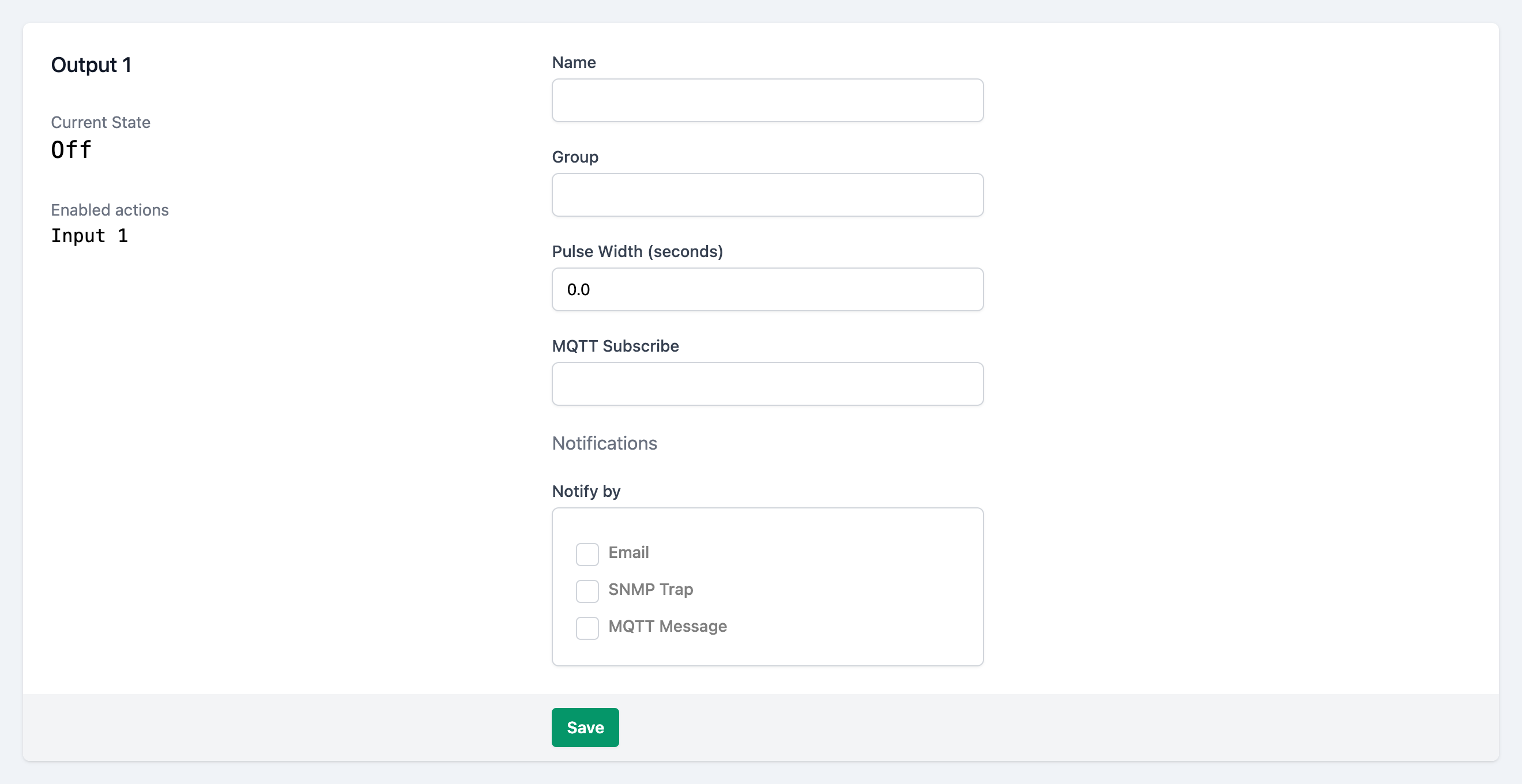
Name
Choose a descriptive name for the output.
Group
Optionally enter a string as the name for the group, this peripheral should belong to.
If you use the same group name for other peripherals (sensors, digital I/Os, watchdogs), those can be shown and filtered by their group on the dashboard.
Pulse Width
If specified, the output will change its state for the entered number of seconds when triggered and then change back to its original state. Otherwise, it will change, but not change back to its original state.
Notifications
// TODO: this is not improted, because digio notification ui differs from the others. partials with args possible?
When the output state changes, the device can emit notifications to make the user aware.
Check one or multiple of the checkboxes, which stand for the channel(s), over which the notifications get sent. Multiple channels can be activated simultaneously.
The device sends an email.
The exact text of the emails can be customized by supplying or editing a template on the email configuration page.
Email Configuration page- SNMP Trap
The device sends a SNMP trap.
SNMP Configuration page- MQTT Message
The device sends a MQTT message.
MQTT Configuration page
Please note, that for
- Email (Configuration page)
- SNMP Trap (Configuration page)
- MQTT Message (Configuration page)
the respective interfaces have to be configured and enabled through their configuration pages.
Box2Box actions
Similar to notifications, when the Box2Box Feature is enabled, the device can control an digital output on another device, when an events occurs with the peripheral.
The corresponding checkboxes are only visible, after the Box2Box feature has been enabled.
// TODO SCREEN
Check one or multiple of the checkboxes, which stand for the output(s), of the controlled device. Multiple outputs can be controlled simultaneously.